
ZOSI App Not Working? Login, Offline and Playback Fixes
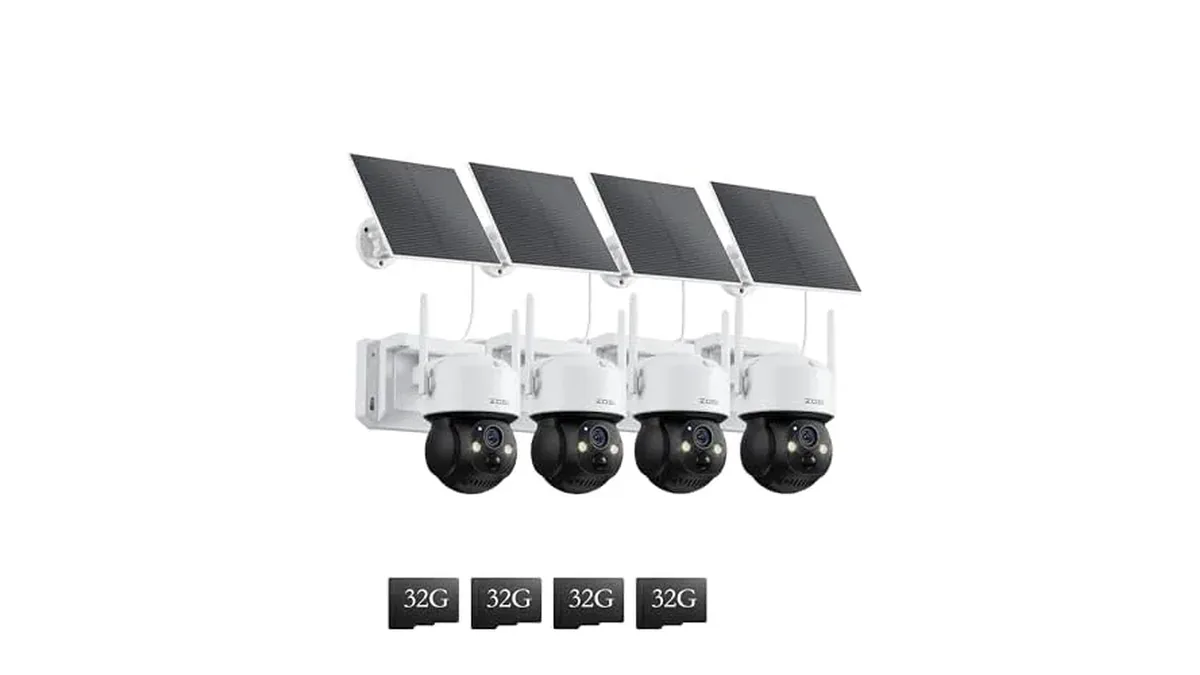
Most “ZOSI app not working” reports fall into three buckets: you cannot sign in, a camera shows offline, or live view works but playback is empty. This guide follows official ZOSI Smart help language and the published facts for the C291 4×4MP Solar Wireless PT kit. It stays with published error language.
What the C291 kit expects from the app
The C291 four-pack is wire-free. Each camera uses a built-in 10050mAh battery topped up by a solar panel and joins your network over 2.4GHz Wi-Fi only. There is no Ethernet run and no recorder in this kit. Picture quality is 2.5K 4MP (2560×1440). You can steer each camera through 355° of pan and 90° of tilt in the ZOSI Smart app, talk back through the speaker, and trigger a spotlight and siren when AI flags a person. Night video can run black-and-white or full color, reaching up to 50 ft (15 m), helped by IR LEDs and the spotlight. Housings are IP66 rated.
To save power, each camera wakes and records when it detects motion. You set clip length to 10, 20, or 30 seconds and review events on a timeline. A 32GB memory card comes in the box, plus a 30-day cloud trial that needs a paid plan afterwards. ZOSI quotes up to three months of standby on one charge, based on 20 activations a day. Because the cameras only join 2.4GHz networks, confirm your router offers that band and that the signal reaches each mounting spot. Initial mounting and solar aiming are covered in ZOSI C291 solar setup.
Recorder issues on another system belong in ZOSI NVR not recording, not in a C291 Wi-Fi session.
Login problems
ZOSI’s own help draws a hard line: the ZOSI Smart account is not the same as the password on a DVR or NVR. Mixing those two logins is a frequent reason the app rejects you.
If you cannot open the app account, use Forget Password and reset it with the verification code ZOSI sends. If the code does not arrive, wait a few minutes, check the spam folder, and try again. ZOSI asks you to contact [email protected] if you still cannot receive a code, and to include whether the phone is Android or iOS, your ZOSI Smart account, and the model ID from the device.
If the app shows “Password Error” after you select a device, ZOSI says that message points at the device password, not the app account. Use Retry password and enter the correct password for that system. If you already changed the device password on a monitor and the app still shows Password Error, ZOSI’s steps are: open the overflow menu, go to Setting, choose Remove this Device, then add the device again.
A forgotten recorder password is a recorder reset. Use ZOSI NVR default password rather than looping on Forget Password in the app.
Camera shows offline
Start with power and radio, because C291 units are battery-and-solar cameras on 2.4GHz Wi-Fi.
- Confirm the solar panel sees daylight and the camera has charge. A camera that sat in shade or indoors can go quiet even if the app account is fine.
- Confirm the mount still has 2.4GHz coverage. A 5GHz-only guest network will not work. Walls, a long yard, and a metal building all shrink range.
- Reboot the camera and the router. ZOSI’s remote-view help also suggests testing another phone and another network (including cellular data) to see whether the fault follows one device.
- Turn off VPN, extra firewall apps, or security suites on the phone while you test. ZOSI lists those as common blockers.
- Try Clear or Fluent stream modes if live view connects and then fails, as ZOSI recommends when testing remote viewing.
- On the router, ZOSI’s remote-view article asks you to enable UPnP and to make sure the router itself can reach the internet. Temporarily disable router-level VPN or antivirus if you added those.
- Check for a camera firmware update in the app once you can open the device.
ZOSI’s older “fails at 84% or 85%, then device connection failed” note usually means the device is offline or a router setting is in the way. Switching the phone from Wi-Fi to cellular (or the reverse) is the first check they give, followed by a reboot. That percentage is an official ZOSI description, not a code added on this page.
If live view works on home Wi-Fi but fails on cellular data, use the same remote-view list. This C291 kit has no recorder, so do not hunt for an NVR “network test OK” screen.
Playback is empty or will not open
Official playback steps in ZOSI Smart are: log in, select Device, open the channel, tap Playback, then pick the date and time or drag the timeline. From playback you can save a clip or a snapshot, and stored media sits under Media.
If those menus open but the timeline is blank, look at how C291 records. These cameras write on motion, not around the clock. A quiet scene can produce no clips. Confirm clip length is set to 10, 20, or 30 seconds, that PIR plus human detection is enabled the way you expect, and that the included 32GB card is seated. After the 30-day cloud trial, cloud storage needs a subscription; local card playback should still work if the card is recording.
If playback fails on a phone but you can use a computer, see ZOSI Smart app for PC. The wider camera lineup sits in the ZOSI review.
Work through the buckets in order: app account versus device password, then power and 2.4GHz for an offline C291, then motion recording and the card for empty playback. That sequence matches how this solar kit actually stores video.