
ZOSI NVR Default Password, and What to Do If You Forget Yours
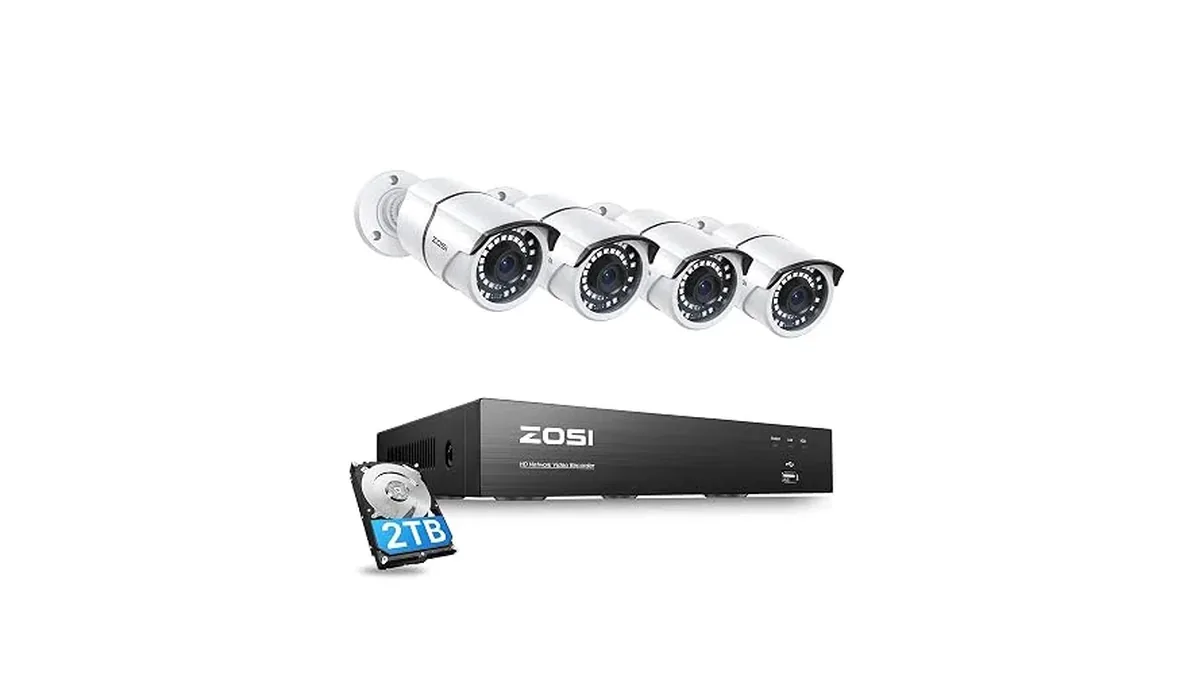
Short answer first. On a ZOSI DVR or NVR, the default username is admin, all lowercase, and there is no default password. ZOSI's help center says to leave the password field blank. If that gets you in, set your own password straight away. If it doesn't, someone has already set one, and the recovery steps are further down.
First login
- Connect a monitor to the recorder's HDMI or VGA port and plug in the mouse.
- At the login box, choose or type admin as the user.
- Leave the password blank and click OK.
If the login screen keeps saying the password is wrong, retype the username first. "Admin" with a capital A, or a stray space, fails.
Set a password right away
ZOSI recommends creating a strong password as soon as you're in. In the user management screen:
- Leave Old Password blank.
- Click the New Password field. The on-screen keyboard appears. Type a mix of letters, numbers and symbols, then confirm.
- Repeat it in Confirm Password.
- Click OK.
Two points from ZOSI worth following. Choose the password yourself, even if someone else installed the system. And on some older NVR models, ZOSI notes the password can't be longer than 10 characters or it won't save correctly, so if a long password doesn't stick, shorten it.
Write it down somewhere safe. A forgotten recorder password can't be reset with a button.
If you've forgotten the password
ZOSI recorders don't use a reset button for this. The route is a one-time super password from ZOSI support:
- Find the model number. It's on the label under the recorder.
- Find the Device ID (UID). It's on the same label. You can also reboot the recorder and read the UID off the startup wizard screen, or scan the Device ID QR code on the front panel of a PoE NVR.
- Contact ZOSI support with the model number, a photo of the UID and, ideally, your order number. ZOSI uses it to confirm the system is yours.
- Log in with the super password as user admin.
- Set a new password under Main Menu, Setup, User. Leave the old password blank and enter the new one twice.
For a few older NVRs (ZR04JB, ZR08KB and ZR08QB), ZOSI documents an on-screen method instead. Enter a wrong password, then click in the space between the error message and OK, alternating right and left mouse clicks starting with right. On the sixth left click, a prompt lets you set a new password. This only applies to those models.
Cameras are different
Individual ZOSI IP cameras have a physical reset button. ZOSI's instructions: long-press it to restore factory settings, then add the camera back to the app. That resets the camera, not the recorder. If your cameras plug into an NVR, it's the NVR password you need.
After you're back in
- Update the password in the ZOSI Smart app and on any computer you view from, so they reconnect. Our ZOSI Smart app guide covers each screen.
- Check that recording is still on and the drive shows normal status.
Kits like the 8CH 4K PoE, 4×5MP, 2TB use this same login. For adding cameras afterwards, see how to add a camera to your ZOSI NVR, and for every kit, NVR Security Kits.