
ZOSI C518 Setup: From Box to Live View
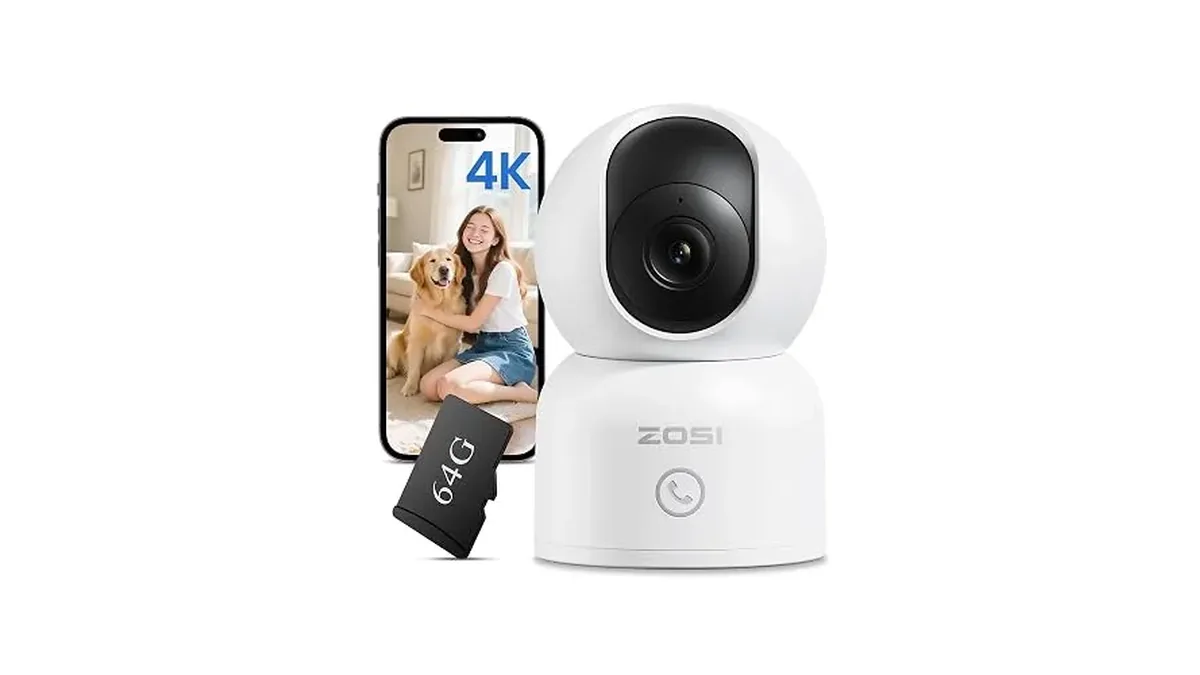
The C518 4K 8MP Indoor 360° PT WiFi camera is set up entirely from your phone. ZOSI flags two things that trip people up: mounting the camera before pairing it, and a WiFi password the camera can't read. Follow these steps in order, based on ZOSI's own quick start guide and help center.
In the box
ZOSI's quick start guide lists the camera, the power adapter, a mounting plate, a mounting template, a screw bag and the guide itself. ZOSI notes that accessories vary by model. For this C518, a 64GB memory card is also included.
Step 1: Fit the memory card with the power off
The card slot and reset button are hidden under the lens. Tilt the camera head up to reach them. With the camera unplugged, insert the card with the contacts facing down. ZOSI's rules for the card:
- Format it as FAT32. ZOSI says it's the only format the camera supports.
- Use a card rated U1/Class 10 or faster.
- Cards up to 256GB are supported.
- Always power off before you insert or remove a card.
Step 2: Power it on and let it self-check
Plug the included adapter into the Type-C port on the back. The camera turns on by itself and pans around as it starts up. Don't force the head while it moves. ZOSI says the self-check takes about half a minute. Use only the adapter that came in the box.
Step 3: Check your WiFi password first
ZOSI's help center flags this as a common cause of failed pairing. The camera accepts letters, numbers and the short list of number-row symbols in ZOSI's guide, such as ~ ! @ # and %. Other special characters, or any spaces, cause the setup to fail. If your router password uses anything else, change it before you start. The C518 connects on 2.4GHz or 5GHz, so pick whichever band is stronger in that room.
Step 4: Add the camera to ZOSI Smart
Install ZOSI Smart from the App Store or Google Play, register, and log in. Then choose one of two methods.
By QR code (the usual way)
- Tap "+" and choose Camera C518.
- Scan the QR code on the bottom of the camera, or type in the device ID.
- Name the camera and tap Add an Unconnected Device.
- Choose your WiFi network, enter the password and tap Next.
- The app shows a QR code. Hold your phone in front of the camera lens so the camera can scan it.
- Wait for the voice prompts "Wireless Configuration Succeed" and then "Wireless Connection Succeed", tapping Next after each. Then tap Done.
By hotspot, if QR pairing won't take
- Hold the reset button for about 5 seconds, until you hear a beep. ZOSI's help article says 5 to 10 seconds.
- Tap "+", choose the no-QR or Add device via AP option, and select your WiFi network and password.
- In your phone's WiFi settings, join the network that starts with "IPC-AP_".
- Go back to ZOSI Smart, name the camera and confirm.
Step 5: Mount it only after it's in the app
ZOSI's order is clear: add the camera to the app first, then install it. It can sit on a shelf or mount on a wall or ceiling:
- Drill holes using the template and push in the anchors.
- Screw the mounting plate in place.
- Line the camera up with the plate and turn it clockwise to lock. Turn it counterclockwise to remove it.
Pick a spot with a wide view. The C518 pans 355° and tilts 75°, so one central spot can cover a whole room. Keep it indoors, out of humid or hot spots, and out of long periods of direct sunlight.
If it still won't connect
- Restart the router, and check that it's online and set to assign IP addresses automatically.
- Re-enter the WiFi password. ZOSI lists a wrong password as one of the first things to check.
- As a test, pair through another phone's hotspot. If that works, your router is the problem.
- Reset the camera and run Step 4 again.
After setup
In the app you can set the camera to record continuously, on motion or on a schedule. You can also turn on person, pet and face detection with auto-tracking, and share access with family. To view on a computer, ZOSI uses its AVSS client. Our guide to the ZOSI Smart app for PC, Mac and phone covers it.
More indoor and specialty cameras are on the Dome & Specialty Cameras page.